Two roles
CONTROL runs the show: GO, FADE, STOP, PANIC, cues, sound FX and timeline GO. VIEW ONLY follows it with no controls, ideal for a stage manager or a monitor.
A dedicated show-audio system for theatre, live events, attractions and museums. Run a classic cue list with instant sound effects, or build a multitrack timeline with GO cues, routing and timecode. Then lock it in Show Mode and run the show with confidence.
Press GO to run a five-cue mini show: the playhead holds at every GO cue, cue 4 continues on its own after a 2 s wait. Fire effects on the pads at any time. Demo sound is synthesised live on this page; keyboard: Space GO, Esc stop, P panic, 1-8 pads.
Click Remote in CUEFLOW, switch it on and scan a QR code. Any phone or tablet on the same network, Android or iPhone, becomes a control surface or a show monitor, with nothing to install.
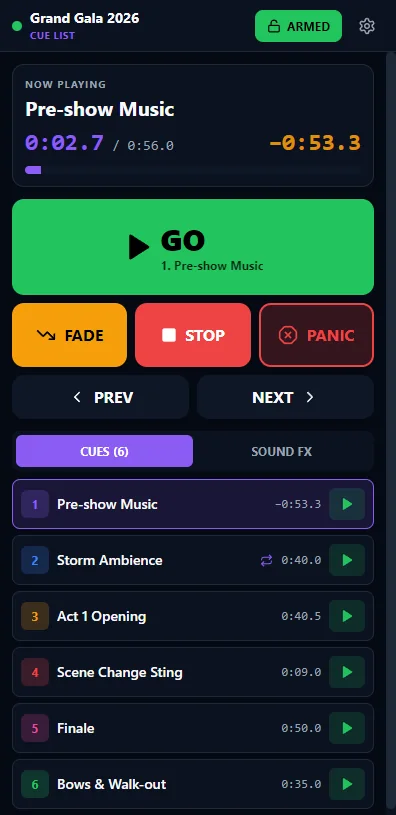
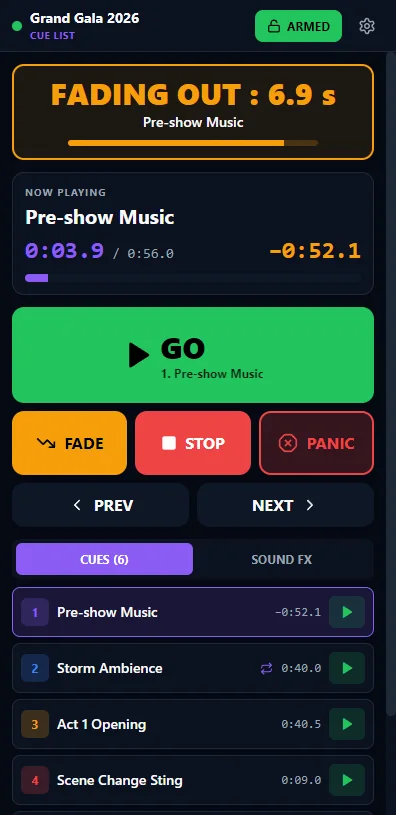
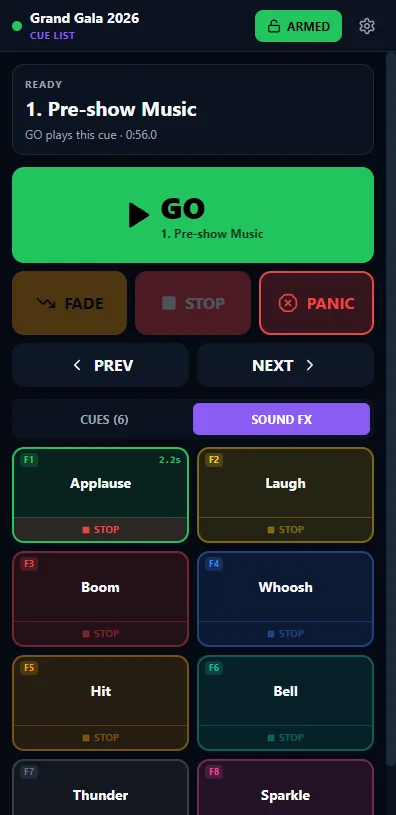
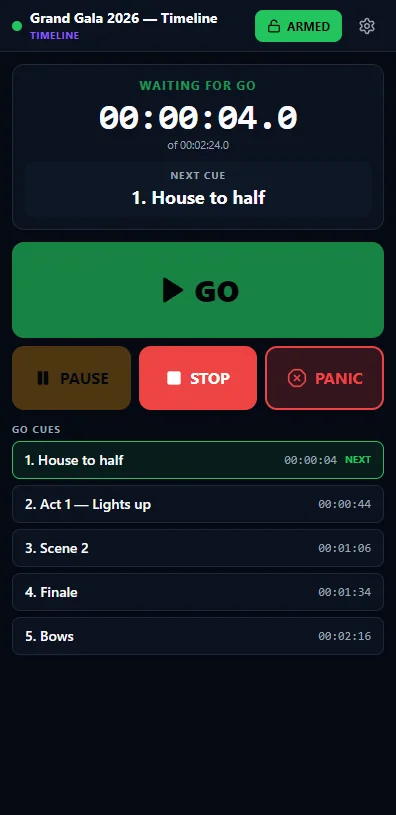
CONTROL runs the show: GO, FADE, STOP, PANIC, cues, sound FX and timeline GO. VIEW ONLY follows it with no controls, ideal for a stage manager or a monitor.
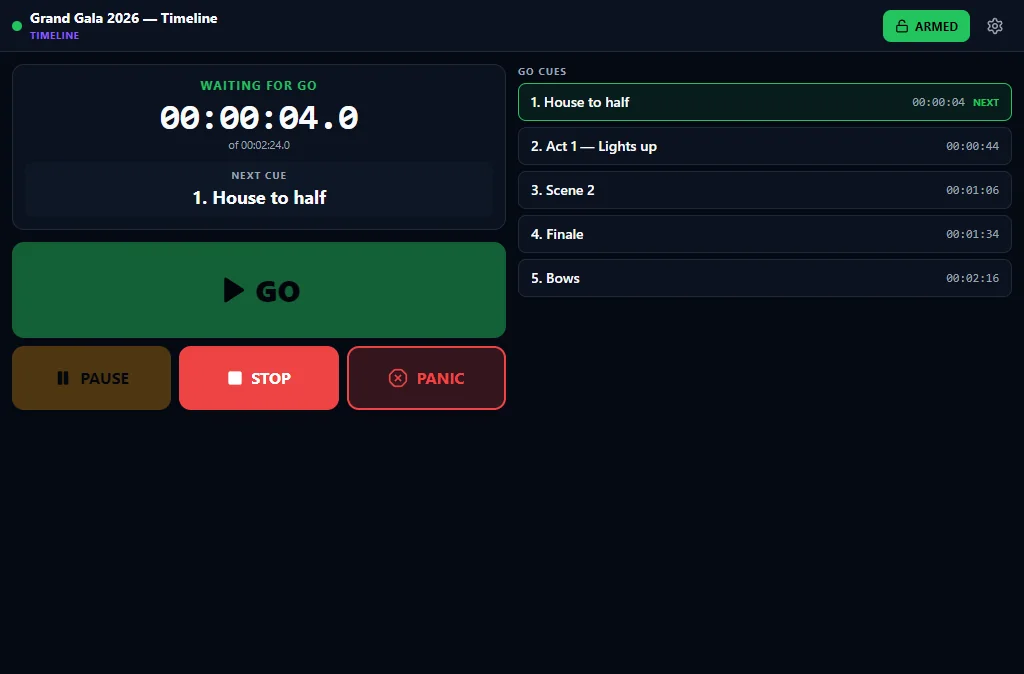
Cue List shows Now Playing, the cue list and the FX pad. Timeline shows timecode, WAITING FOR GO, the next cue and the GO cue list.
An ARM pocket guard keeps controls locked until you mean it, double taps are ignored and PANIC always works. View only is enforced by CUEFLOW itself.
If the network drops, CUEFLOW carries on playing. The phone shows DISCONNECTED and reconnects by itself.
Connect phones and tablets together. Tablets get a two-column layout with more of the show at a glance.
Scan the QR code with the phone camera and the remote opens in its browser, on Android or iPhone. Prefer an app? See CUEFLOW Remote for Android below.
Scan the QR code, tap ARM, and the phone's volume keys become GO and STOP. The native Android app adds what a browser page can't do, with the same remote you already know.
CUEFLOW keeps exact cue timing even when it is minimised or behind other windows.
Let the lighting desk run the sound, give every cue its own end point, end fade and loop, and always see what the sound is doing.
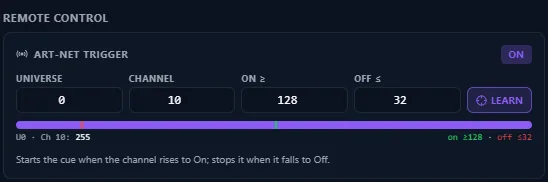
Fire cues, sound effects or GO from a lighting-desk fader. Move the fader to Learn its channel, then set the On and Off levels.
A large flashing FADING OUT countdown, then STOPPED, so everyone in the booth sees what the sound is doing.
Every sound-effect button has its own STOP strip, to cut that one effect without touching the rest.
Set where each cue ends, just like its start. Fade to the end point, or start the fade there.
Loop a cue between its start and end points, and choose whether Space fades it out or stops it at once.
Click the waveform while a cue plays to jump straight there and carry on: perfect for rehearsals.
Map your cues and all eight sound-FX buttons to a MIDI pad: press LEARN, hit a pad, done. A drum pad full of sound effects, a keyboard or a footswitch can launch the sound, and an FX fired from MIDI plays over the running cue.
The cue and sound-FX editors share one clean, tabbed design that fits on any laptop screen, with no scrolling. The name, icon and colour sit in the header, and three tabs keep everything in reach.
Rock-solid playback, timecode and saving, with true 29.97 drop-frame timecode.
CueFlow combines the classic cue player operators already trust with a full multitrack show environment. Pick the mode that fits the production.
The classic cue player, one cue at a time.
Best for: plays, school productions, ceremonies and hotel shows, where cues follow one another.
A multitrack show, driven by GO cues.
Best for: musicals, attractions, museum installations and shows locked to lighting or video.
Switch between the two modes with one button.
Built to be easier and safer to run than a music-production workstation: the tools for building a show, and a locked, readable screen for running it.
Drag audio files straight onto a track lane, move clips in time or across tracks, and trim them with edge handles. A waveform is drawn in every clip.
Moves and trims snap to the grid, clip edges, cues and the playhead. Overlap two clips and an equal-power crossfade is applied automatically.
Fade in and out with linear, exponential, logarithmic, S-curve or equal-power shapes. Copy, paste at the playhead and duplicate in one keystroke.
Start, source offset, length, gain, speed, reverse, mute and lock for the selected clip, all in one bottom panel.
Every track has solo, mute, a volume fader with a live meter and a pan control that recentres with a double-click.
Playback holds at each cue until the operator presses GO. Cues number themselves by time, can be named, located and removed in the Cue List panel.
GO holds for the operator, Wait continues after a set time, Stop ends playback, Jump loops or re-orders, Fade takes the master to a level.
Draw volume points over any track, from silence up to 150%. Automation plays live and is included in the rendered mix.
Add named outputs such as FOH, Rear or Backstage, choose a device for each and route any track to it. Mute an output in one click.
Render the whole timeline to a stereo WAV, faster than real time, with fades, automation and levels. Or record the live master output during the show.
Editing locks and a full-screen live display takes over: giant GO, current and next cue with countdown, large timecode, upcoming cues, STOP and a big PANIC.
Autosave every 15 seconds while there are changes, undo and redo for timeline edits, and an Event Log of every GO, file, device and error event.
CueFlow plays well with the rest of the booth: hardware triggers in, timecode in or out, and every output where you need it.
Click Learn, then press a note or CC on any MIDI controller or footswitch, or any key. Bind GO, Pause, Stop, PANIC, Return to start or Show Mode, or give any cue or FX button its own MIDI trigger. Bindings are saved in the show file.
Let the lighting desk run the sound. Move a fader to Learn its channel; a cue, FX or GO fires above your On level and re-arms below Off.
Send MTC so a lighting or video master follows the timeline, or chase incoming MTC with drift correction. A CHASING light shows when locked.
Generate SMPTE LTC on a dedicated output while the show plays, or follow LTC arriving on an audio input as a timecode slave.
Planning several outputs for a long or critical show? Use a single multichannel audio interface rather than several separate devices, so every output runs on the same clock.
The recommended way to prepare and run a show in Timeline Mode.
Add tracks, import audio, arrange clips, set fades and levels.
Place GO cues at every operator hold and name them in the Cue List.
Send tracks to named outputs when you use more than one.
Optionally put GO on a MIDI footswitch, a lighting-desk fader or any key you like.
Save the show. Autosave protects every change from here on.
Run it through and adjust automation and levels.
Turn on Show Mode, then drive the night with GO and PANIC.
Export a WAV reference mix of the whole show.
A standard media player is built to listen to music. CueFlow is built to run a show, where the next sound has to start exactly when it should.
| On show night | AMOS CueFlow | Standard media player |
|---|---|---|
| Running order | ✓Cue list, playback holds for GO | ✕Browse files during the show |
| Start & fade points | ✓Set per cue on the waveform | ✕Plays from the top |
| Sound effects | ✓8 pads on F1–F8 over the main track | ✕One file at a time |
| Time left | ✓Large live countdown | ✕Small or hidden |
| Emergency stop | ✓One-press PANIC | ✕Hunt for the stop button |
| Operator safety | ✓Show Mode locks editing | ✕Easy to click the wrong thing |
| Several outputs | ✓Tracks routed to named outputs | ✕One output |
| Hardware & sync | ✓MIDI, Art-Net, MTC and LTC | ✕None |
| Remote control | ✓Phones and tablets, control or view only | ✕None |
| Protection | ✓Autosave, undo, event log | ✕No autosave, no log |
Wherever sound has to land on cue, night after night.
Music, effects and underscore on the stage manager's call.
Backing tracks with GO holds between numbers.
Simple, safe operation for student crews.
Walk-ins, stings and transitions on time.
Winner stings and play-ons, fired instantly.
Nightly shows run the same way every time.
Looping shows synced to lights and video.
Soundscapes and narration across several zones.
Launches, conferences and gala dinners.
Jingles, beds and stings with a live countdown.
Real CueFlow screens: Cue List Mode, Timeline Mode, Show Mode, the cue editor and the fade-out alert. Tap any image to enlarge it.
AMOS CueFlow is not sold off the shelf. Every copy is supplied directly by AMOLVIN, so we can understand your show, help you set it up and be there when it matters.
Start with a 7-day trial, then choose 3, 6 or 12 months, or unlimited. Each computer has its own licence.
Three steps from first message to first cue.
Venue, type of production, number of outputs and any lighting or video you need to sync with.
We walk you through Cue List and Timeline Mode with material close to your own show.
We supply the app for your show PC and help you prepare your first project.
Theatre production, ceremony, attraction or museum: tell us what you are planning and we will show you CueFlow running it.
