Windows · Version 0.9.0 · Now shipping

AMOS GrblForge

Design, control and machining in one place for GRBL-based CNC routers and laser engravers. Draw or import your artwork, assign cutting operations, watch it run in simulation, then cut it — without moving between three different programs.

Windows 10 and 11, 64-bit · US$1,299 launch price · perpetual licence

Machine Status
StateRUN
Feed1 800
X142.500
Y96.250
Oak Sign — V-Carve62%
One program, whole job

From a blank sheet to a finished part

Everything between the idea and the cut, without exporting a file to a second program and hoping the two agree about millimetres.

Design and import

Draw shapes, set type in your own installed fonts, or bring in SVG, DXF, PDF, photographs and STL models. Trace a picture into cuttable outlines.

Real toolpaths

Profiles, pockets, adaptive clearing, V-carving, drilling, inlays, chamfers and 3D relief — worked out for the actual cutter you have assigned.

Laser too

Vector cutting and engraving, fills and hatches, photographs with a choice of dithering, and framing that shows where the job lands before you commit.

Simulate before you cut

Watch the whole job run in 2D and 3D, with the material, the carve and the toolpath. Mistakes found here cost nothing.

Pre-flight checks

Before every job: homed, origin set, tool confirmed, inside the work area, laser mode correct, no unsupported commands. Blocking problems stop the run.

Watch from your phone

Pair a phone over your own network to jog, probe, follow progress and stop the job — with the desktop still in charge.

Inside the app

What it looks like at the bench

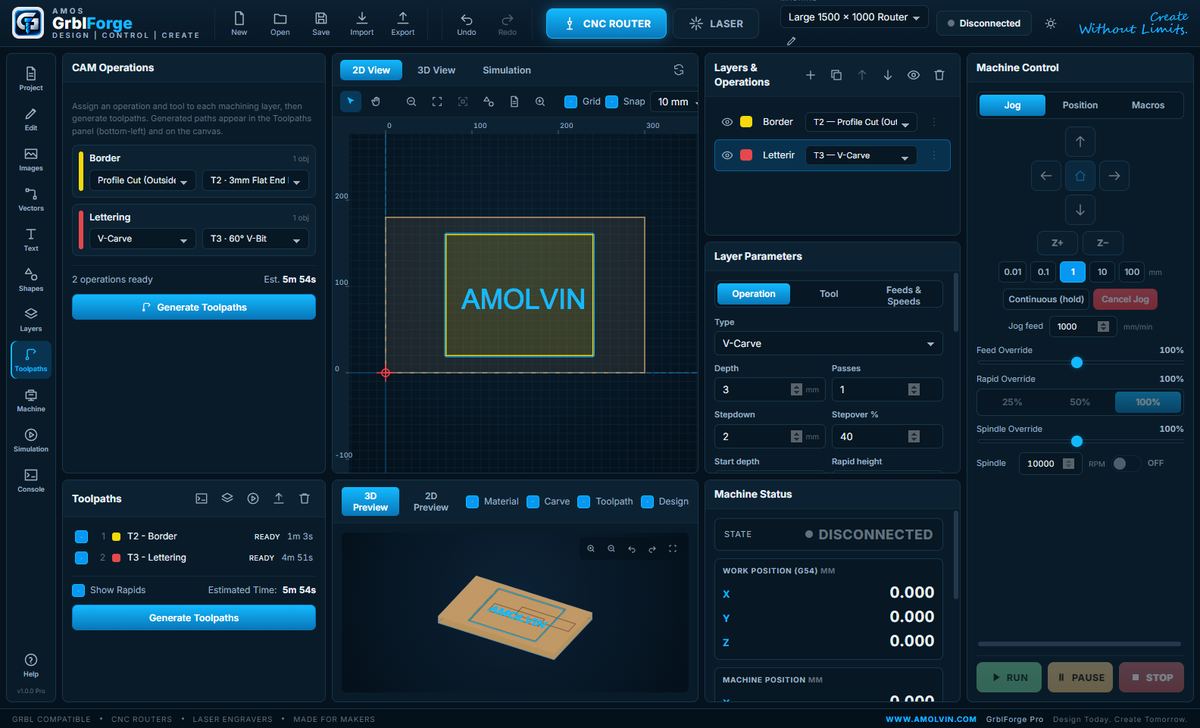
One window: the drawing, the operations, the generated toolpaths and the machine controls, all visible at once. No tab hunting halfway through a job.

AMOS GrblForge — CNC Router
AMOS GrblForge in CNC router mode: the design canvas with a carved sign, CAM operations with tools assigned, generated toolpaths and the machine control panel.
Router

A sign, from drawing to toolpath

Two layers on one board: the lettering V-carved with a 60° bit, the border profiled with a 3 mm end mill.

  • Each layer carries its own operation, tool and depths
  • Run time is estimated before anything moves
  • The 3D preview shows the stock, not just the lines
  • Jog, overrides and the position readout stay on screen
AMOS GrblForge — Laser
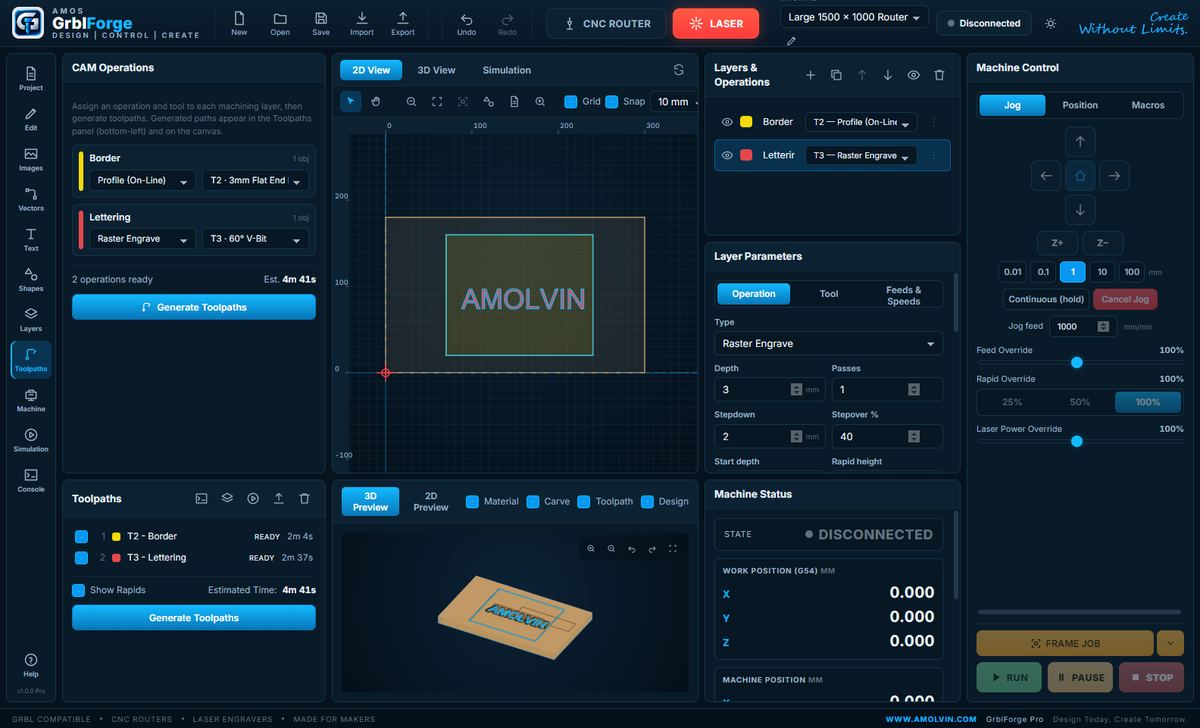
AMOS GrblForge in laser mode: raster engrave and on-line cut operations, laser power override and the frame job control.
Laser

The same job, switched to the laser

One click changes the machine. The operation list, the controls and the safety behaviour all change with it.

  • Spindle speed becomes laser power
  • Frame the job to check the placement before burning
  • Raster engraving and vector cutting on separate layers
  • Layers remember which machine they belong to
Where it runs

The same program, five very different benches

Anything that speaks GRBL, from a hobby router on a garage bench to a plasma table cutting steel. The machine changes; the way you set the job up does not.

Router

Home workshop

A benchtop router in a garage, driven from the laptop next to it.

  • Machine profiles remember each bed size and travel
  • Pre-flight catches a job that runs past the edge
  • Simulation first, so a mistake costs seconds not material
Production

Industrial warehouse

A full-sheet machine running repeat work on a shop floor.

  • Job history records the material, the tools and the run time
  • Tool changes pause the program and tell the operator what to fit
  • Macros and park positions for a fixed loading routine
Portable laser

On the move

A small diode laser at a market stall, run from your phone.

  • The mobile remote pairs by scanning a QR code
  • Jog, frame, start, hold and stop from across the table
  • Framing shows exactly where the burn will land
Sheet metal

Plasma table

A GRBL plasma table cutting steel from the same drawing.

  • Profile cuts with lead in, lead out and an offset for the kerf
  • Frame the outline on the plate before you strike the arc
  • Torch height control stays with your own controller
Memorials

Stone engraving

Granite and slate, dot engraved from a photograph.

  • Stone and dot engraving is a first-class operation
  • Dithering patterns, previewed dot by dot before you start
  • Depth per dot and spacing tuned for the hardness of the stone
Both machines

Router and laser, properly separated

The workspace switches between the two, and each layer knows which machine it belongs to — so a laser job cannot quietly inherit a router's settings.

CNC router

Seventeen operations, each with the parameters that matter at the machine.

  • Profile cuts outside, inside and on the line
  • Pockets, and adaptive clearing for a light bite at full depth
  • V-carving, engraving and centreline engraving
  • Drilling and peck drilling
  • Facing, slots, chamfers and two-part inlays
  • 3D relief and 2.5D stepped contours from a height map
  • Tabs, lead in and out, ramping and helical plunges
  • Rest machining, so a smaller cutter clears only what is left

Laser engraver

Eleven operations, with the controls a diode or CO₂ machine actually needs.

  • Vector cutting, engraving and marking
  • Fills, hatches and cross hatches
  • Photographs: raster, greyscale and six dithering patterns
  • Centreline burning down the middle of a shape
  • Constant or dynamic power, so corners do not burn darker
  • Focus offset, overscan, air assist and multiple passes
  • Framing the bounding box or the outline, once or continuously
  • A preview of the exact dots that will be burned
Availability

Get AMOS GrblForge

Supplied on request so every workshop is set up properly rather than left to work it out from a download link.

Launch price
US$1,299 one-time

Perpetual licence for version 0.9.0 and the whole 0.x series.

  • Full CNC and laser operation set, no feature tiers
  • Installer and portable build, both 64-bit Windows
  • Mobile remote included
  • Works entirely offline — no account, no subscription
  • Complete user manual
Request access

We reply with pricing, licence terms and the download.

1

Read the manual first

The full manual is free to download below. It covers everything the software does, so you can judge whether it suits your machine before you talk to anyone.

2

Tell us about your machine

Which controller, what size, router or laser or both. It takes a moment and it means the answer is about your setup rather than a generic one.

3

Get the files and the licence

We send the installer, the portable build and your licence details, along with anything specific to the machine you described.

Free · No sign-up

User Manual (PDF)

Setup, a first job end to end, every operation and parameter, probing, tool changes, the mobile remote, troubleshooting and safety.

14 pages · A4 · about 40 KB

Windows will warn you on first run. The build is not code-signed yet, so SmartScreen shows a blue notice the first time. Choose More info, then Run anyway.

Before you start

What you need

Your computer

  • Windows 10 or 11, 64-bit
  • A USB port for the machine
  • No internet connection required to cut — everything runs locally

Your machine

  • A CNC router or laser engraver running GRBL 1.1
  • Connected over USB or serial
  • A touch plate is optional but makes setting zero far quicker

Never leave a running machine unattended. A router and a laser can both ruin a workpiece or start a fire while everything on screen looks correct. Keep the physical emergency stop within reach and use it first. The safety section of the manual is worth reading before your first cut.

Talk to us about your machine

Tell us what you run and what you make on it. We will come back with pricing, licence terms and the files — and if it is not the right fit for your setup, we will say so.