Video
Plays to the end, or loops until the next GO for walk-in and background clips.
VIDEOBuild a playlist of videos and images, fire them with one big GO button or let the whole list auto-play, from the laptop or from your phone. AMOS MediaCue outputs fullscreen on the second screen and shows your logo or the next speaker's name between cues. Made for conferences, churches, galas, award nights and live events.
This little player works like the real one. Press GO to fire the standby cue, watch the time count down, pick the next cue, or switch on AUTO and let the list run. Between cues, the next speaker's card appears on screen.
Drag files from Explorer onto the list, drag rows to put them in order, and give each cue its own volume, scaling and loop. Every cue shows a thumbnail, its type and its length, so the whole show reads at a glance.
Plays to the end, or loops until the next GO for walk-in and background clips.
VIDEOHolds on screen until the next GO, ideal for title slides, agendas and sponsor walls.
IMAGEA picture with its own soundtrack, such as music or a voice-over. The image stays up until the audio ends, then the show moves on.
IMG + AUDIODuring auto-play, an image without audio stays for the number of seconds you choose.
IMAGE · 8 sDrop slide.jpg and slide.mp3 together and MediaCue pairs them into one image + audio cue for you.
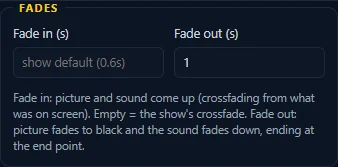
Play only the part you need, bring it in and out smoothly, and lay your own music or voice-over on any image or video.
Preview the cue and press SET at the right moment, or type exact times. Loops stay inside the range.
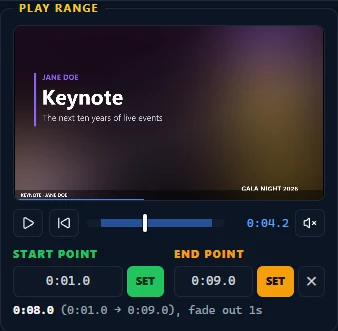
Per cue, on picture and sound together. The fade out ends exactly at the end point.
Add, replace or remove a separate audio file on an image or a video: music, a fanfare or a voice-over. Mute the video's own sound when you only want your track.
Run every cue by hand, or switch to AUTO and let the whole list play. The yellow standby bar always shows what the next GO will play.
GO (Space) plays the standby cue and moves standby to the next one. Click a cue, or use the arrow keys, to change what plays next.
AUTO plays the entire list on its own. Perfect for walk-in loops, sponsor reels and the moments when the operator has other jobs to do.
While the output waits for the next GO, it shows your logo. Give any cue its own intro card, with an image and the speaker's or host's name and role, and it appears while that cue is up next.
Smooth crossfades on everything the audience sees and hears, picture and sound together, with the length you choose.
The operator works on the laptop while the audience only ever sees the output, fullscreen on the projector or LED wall.
Walk the room, stand by the stage or hand a tablet to the stage manager. Pair a phone with a QR code and it becomes a GO button, a cue list and a countdown.
Scan the QR code on the show computer and the remote opens in the browser. Control runs the show; View only follows it, ideal for a stage manager or a host.
The Android app adds a built-in QR scanner, keeps the screen on during the show, and while the remote is armed, Volume Up fires GO and Volume Down stops, so you can run cues without looking.
Real MediaCue screens from a gala show: the dark control window with its status pill, playlist toolbar and status bar, and what the audience sees on the big screen. Tap any image to enlarge it.
Save the whole show as one MediaCue file. Copy the show folder to another PC and everything is still in place.
Media is found again next to the show file, so a show folder moves from your office PC to the venue laptop in one copy.
Your work is saved as you go and comes back exactly as you left it the next time you open MediaCue.
Any file that can't be found shows in red, so you catch it during setup, long before the doors open.
AMOS MediaCue is available on request only. Ask us and we'll send you the app and help you prepare your first show.
Tell us about your event and the screens you use, and we'll get you started.
support@amolvin.com · +230 5986 1097
