1The suite
The AMOS Bingo Suite is two Windows desktop apps that work together:
Both apps run offline. Each comes as an installer or a portable version for Windows (64-bit). The players' board in BingoPro uses your local Wi-Fi, not the internet.
2A bingo night, step by step
- Design the cards in the Card Generator: format, range, title or logo, footer and page layout.
- Export the cards as a PDF or JPEG pages and print them. Tick Caller's check sheet if you want a paper backup.
- Export the card list (.abc / CSV / XLSX / TXT) from the same batch.
- Open BingoPro, set the range, title, logos and sounds in Settings, and load the card list (Check card → Load card list).
- Show the display on the projector or second monitor, pick the pattern and prize, and press Start game.
- Call the numbers: type them in passive mode, or let BingoPro draw in active mode.
- When someone shouts bingo, Verify winner with their card number, then Confirm winner or Continue.
- Export the audit (XLSX / CSV) and the session stats (CSV) for your records.
3Anatomy of a card
Every card has three parts: a title (text or your logo) on top, a grid of number sections in the middle, and an optional footer note at the bottom. Every number on a card is unique, and each card is randomised on its own.
- Title: a text title in a rounded box, or your own logo image, aligned left, centre or right.
- Section header row: the column labels, for example 1–9, 10–19 … 100. It can be hidden.
- Lines: each row holds the same count of numbers, dropped at random into the correct section columns, so a line can span near or distant sections (for example 2, 11, 34, 69, 89).
- Footer note: an optional rounded caption that can also show a date and a label or serial.
floor(value ÷ section size). With the default section size of 10 and a 1–100 range you get the columns 1–9, 10–19 … 90–99, 100. Change the section size to regroup the numbers.4Card formats
The Card format selector (top of Numbers & sections) picks the card style. A standard format hides the custom-grid controls and fixes the range for you.
Line bingo (custom)
Your own range, section size, numbers per line and lines per card. Ideal for house or fundraiser games.
90-ball ticket (UK)
A 3×9 grid where every row holds exactly five numbers and each column is a decade (1–9, 10–19 … 80–90), sorted top to bottom. Blank cells are shaded.
75-ball card
The 5×5 card with a coloured B-I-N-G-O header: B 1–15, I 16–30, N 31–45, G 46–60, O 61–75, and a FREE space in the centre.
5Books & printing
The Books & printing panel turns a batch of cards into a print-ready set.
| Setting | What it does |
|---|---|
| 90-ball books of 6 | Tickets come in books of six where every number 1–90 appears exactly once per book. 90-ball format only. |
| No duplicate cards | Guarantees that no two cards in the batch are identical. |
| Ink-saver | Black and white printing with no colour fills or shaded cells: cheaper and easy to mark with a dauber. |
| Caller's check sheet | Adds a table of every serial and its numbers (sorted) to the PDF or JPEG export, for quick winner checks on paper. |
{book} and {ticket} (with {n} / {total}), for example Book {book} · Ticket {ticket}.6Settings
Numbers & sections
| Setting | What it does |
|---|---|
| Range preset | Quick pick of 1–100, 0–99, 1–90, 1–75, or Custom… to type your own lowest and highest. |
| Lowest / Highest | The first and last number that may appear on any card. |
| Section size | How many numbers form one column (10 → 1–9, 10–19 …). Sets how many section columns the card has. |
| Numbers per line | How many numbers each line holds (for example 5 or 6). It can't exceed the number of sections. |
| Lines per card | How many rows of numbers each card has (for example 3, 4 or 5). |
| Show section header row | Show or hide the labelled header. Hidden or not, numbers stay in their section columns. |
Top of card
| Setting | What it does |
|---|---|
| Header | Text title, Logo image, or None. |
| Title text / Logo image | The words in the title box, or a PNG/JPG shown instead. Clear logo removes it. |
| Alignment | Left, Centre or Right. |
Foot of card
| Setting | What it does |
|---|---|
| Footer note | A rounded caption under the grid. {N} = numbers per line, for example {N} numbers to complete a line. |
| Show date | D/M/Y (default), D-M-Y, ISO, M/D/Y or long (28 August 2026). |
| Text label / serial | Tokens: {n} card number, {total} total cards, {N} numbers per line. |
Page & layout
| Setting | What it does |
|---|---|
| Page size / Orientation | A4, Letter or A3; portrait or landscape. |
| Cards per page | Presets (1–8) or Card rows × Card cols for any grid. |
| Total cards | How many cards to produce; pages fill automatically. |
| Cut guides | Thin outlines between cards to help you trim. |
| Export quality (DPI) | 150 (light), 200 (default) or 300 (sharpest print). |
| JPEG quality | Higher means larger, crisper files. |
7Export & troubleshooting
- Set the numbers, header, footer and page layout on the left.
- Check the preview on the right; shuffle or page through until you're happy.
- Export PDF: choose a filename; the app writes one PDF with all pages.
- Export JPEG pages: choose a folder; the app writes
page-01.jpg,page-02.jpg… into abingo-cardssub-folder. - Export card list: save every card's numbers as .abc / CSV / XLSX / TXT for BingoPro.
After a successful export the app opens the saved file or folder for you. Cards default to the AMOS BINGO title with a serial and a small www.amolvin.com watermark at the foot, all editable under Foot of card.
Troubleshooting
- "Numbers per line exceeds sections": lower numbers per line, or widen the range or raise the section size to add columns.
- "A card needs N numbers…": there aren't enough distinct numbers. Widen the range or reduce lines or numbers per line.
- Big files: lower the DPI to 150 or reduce the JPEG quality.
8First run
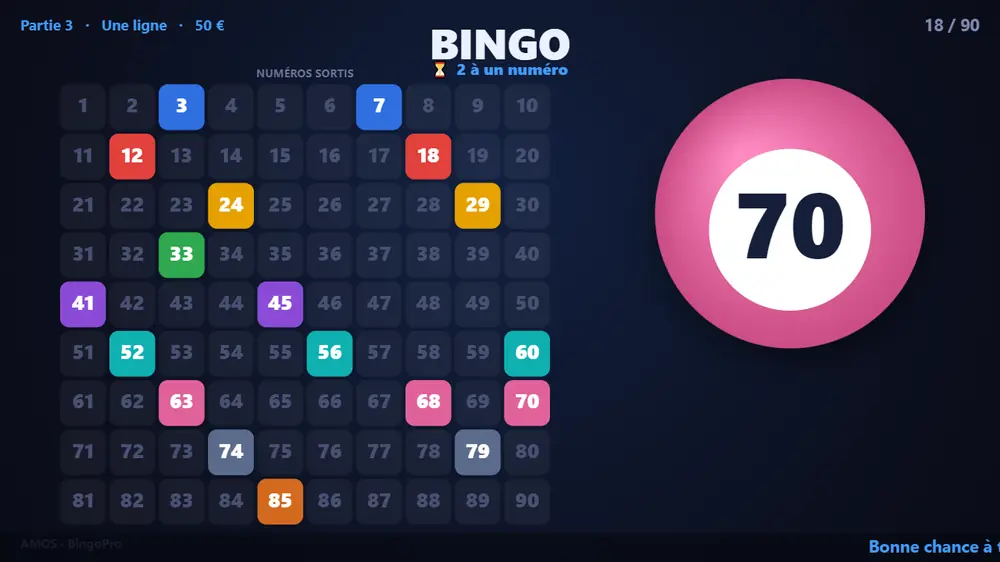
BingoPro is a dual-screen bingo caller. You run the game from the Control window; the audience watches big animated numbers on a fullscreen Display on a second screen (projector or monitor 2).
- Open Settings and pick the number range, title, sponsor logos and sounds.
- Choose the display monitor, tick Fullscreen, then click Show display.
- Pick Passive or Active mode, then press Start game.
9The operator panel
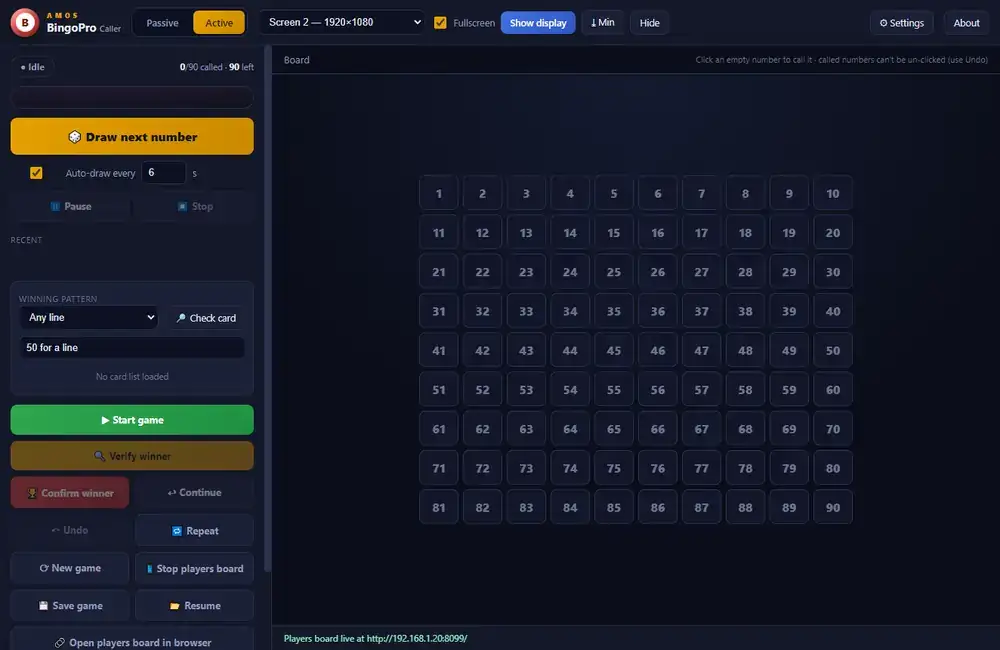
- Passive / Active (top) switches the mode; only that mode's controls are shown.
- The big number and Recent strip mirror what the audience sees; the board on the right lights called numbers.
- Flow buttons: Start game · Verify winner · Confirm / Continue · Undo · New game.
- Audit: export the full event log to XLSX or CSV at any time.
Passive mode
You call the numbers yourself: type each drawn number and press Enter, or click an empty number on the board.
Active mode
The app draws at random. Use Draw next number, or tick Auto-draw every N s. A countdown shows on the panel and the public screen; Pause / Resume and Stop control the auto-draw.
10Running a game
- Start game: the board clears and a fresh audit log begins.
- Draw numbers (type in passive mode, draw or auto in active mode). Each is announced with an animated ball.
- When a player shouts bingo, press Verify winner: auto-draw pauses and the display shows a "verifying" banner.
- Confirm winner (optionally type the winner or table name) to celebrate, or Continue to keep playing.
The winner celebration shows confetti, the winner's name, the winning ball and the full board of called numbers.
11Settings
| Setting | What it does |
|---|---|
| Range preset / min–max | 1–90, 1–75 (with B I N G O letters and classic colours), 1–100, or a custom range. |
| Board columns | How the board grid is laid out (ignored in 1–75 letter mode). |
| Display title | The heading on the public screen. |
| Called balls on display | Most recent 10 (ball + recent strip) or All drawn balls (a full flashboard beside the ball). |
| Logos | Sponsor or event images along the bottom of the display. |
| Audio FX | Built-in sounds for draw, verify, confirm and winner, an intro jingle, applause and an on-the-bell callout, or your own files. Volume and mute. |
| Display → Language | English, French, Spanish or German for every on-screen label, the pattern names and the voice. |
12Voice, patterns & prizes
Voice caller
Turn on Announce numbers in Settings and BingoPro reads each number aloud through your PA, using built-in Windows voices with no internet. Optional traditional nicknames ("two little ducks, twenty-two"); pick the voice and speed.
Winning pattern
Choose the goal on the panel: Any line, Two lines, Four corners or Full house. It shows on the display as Game N · pattern · prize. Add a prize label, shown on screen and in the audit.
Multi-stage rounds
In Settings, add stages to run several patterns in one game (one line → two lines → full house), each with its own prize. Continue moves to the next stage.
13Card checker & fair play
Export a card list from the Card Generator and load it in BingoPro (Check card → Load card list). Verifying a winner is then instant:
- Click Verify winner: a popup opens.
- Type the player's card number and press Enter (or paste the numbers).
- BingoPro shows a clear ✓ WINNER or ✗ not yet, against the current pattern.
One-to-go watch & auto-detect
With a card list loaded, the display shows a live "one to go" badge and flips to "BINGO on a card, check now" the moment a loaded card completes the current pattern, so a win is never missed.
14Players' board, themes & stats
Players' board (phones & TVs)
Click Players board to start a local web page that mirrors the called numbers over your venue Wi-Fi. Players open the address shown on their phones; on a TV or laptop open it and press Fullscreen (or F). Open in browser opens it on this PC.
Themes & attract
- Themes: classic, blue, green and high-contrast display palettes (Settings → Display extras).
- Attract: a background image and a scrolling ticker message on the display.
- Sessions: game number and prize on screen and in the audit; Save game / Resume to a file.
Session stats
Open Stats on the panel to see games played, numbers drawn, the average per game and a number-frequency heatmap across the session, then export the session to CSV.
15Audit & shortcuts
Every action is recorded: game start, each draw (with time and draw number), verify, winner, undo and corrections. Export it any time with Export XLSX or Export CSV for a complete, timestamped record of the game.
- Called numbers can't be removed by clicking; only sequential Undo removes a draw, and it is logged.
- Active-mode draws are random and uniform across the remaining numbers.
- Every number appears once on the board, and the count (called / total) is always visible.
| Key | What it does |
|---|---|
| Space | Draws (active mode) or focuses the number box (panel). |
| R or ↑ | Re-calls the last number (panel). |
| U | Undoes the last draw (panel). |
| F11 | Toggles fullscreen on the display screen. |
| Esc | Leaves fullscreen, then minimises the display. |
| M | Minimises the display window. |
16About & support
AMOS Bingo Card Generator v1.2.0 and BingoPro v1.2.0, built by STEWART AMOLVIN. Open the About dialog in each app for the exact installed version.
For a copy of the suite, an update, or help setting up a bingo night, contact support@amolvin.com.